Heading out from our home base of Caparica, we took a day to visit Sintra, Portugal, along the Atlantic coast and a short drive from Lisbon.
We arranged an Airbnb tour and travelled with a mother/daughter pair from Mexico. As the day started, rain clouds moved in, misting over the landscape as we came into Sintra.
The first stop was the Pena Palace, one of the seven wonders of Portugal. Seeing it was like visiting a real-life Disney castle, but with colors and personality that made it a unique experience.
We climbed a short way up the mountain, through a grand entry archway, and stepped up to the bi-colored palace with tons of other visitors.
From up here, we had a great view of the surrounding area – and we could even spot Lisbon off to the East.
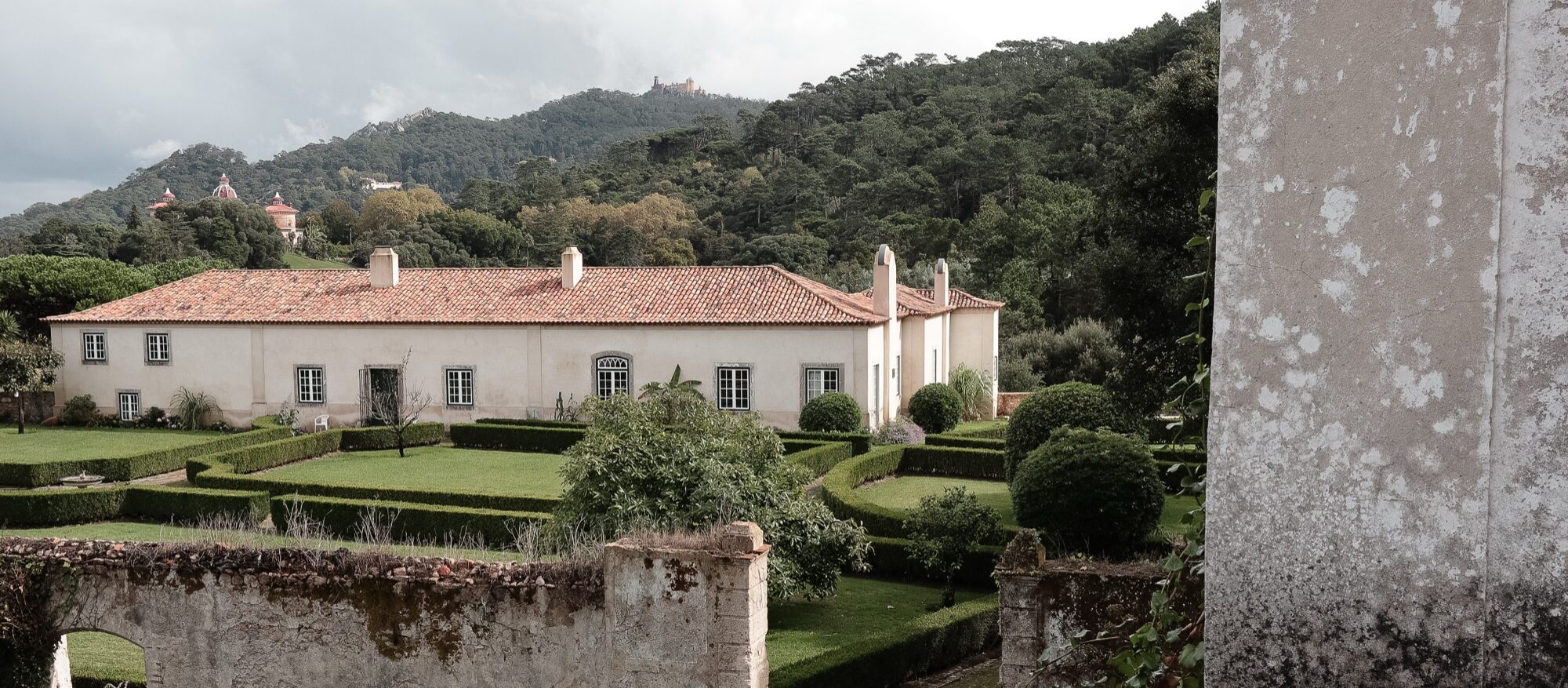
Next, we took a short drive to the Quinta da Regaleira, a 19th-century estate sprawling with chapels, statues, grottoes, and an initiation well that spiraled down into a cave system beneath the grounds.
We could have spent an entire day here, exploring the property. In between the rain, we climbed up the estate hillside and climbed down the well – over and under and through everything.
I thought back to what it must’ve been like to live here, especially as a child, and be able to wander around the estate day after day.
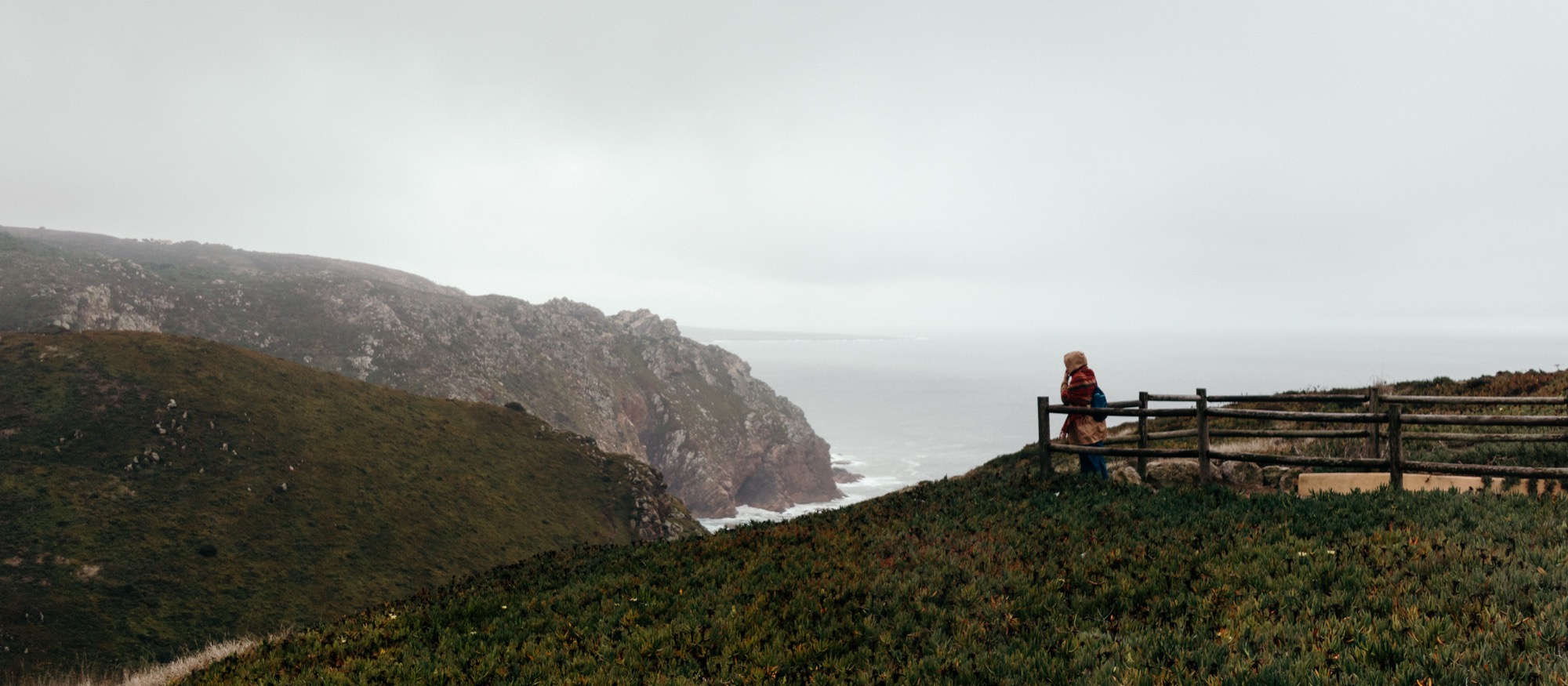
From the Quinta da Regaleira, we headed to the seaside and Cabo de Roca, the westernmost point in continental Europe.
After grabbing lunch, we stopped at the cliffside, 100 meters above the Atlantic Ocean, to see the lighthouse and marker noting the end of the Eurasian landmass. To the East were rolling hills and natural meadows. To the west? A long dive into the ocean.
With a good tour guide (shout-out to our own Giovana!), these kinds of tours are a great way to efficiently explore parts of a new country.
And even with the rain and inconsistent lighting, the Canon EOS M6 and stock zoom lens were all I needed to capture the day.
Fujifilm cameras are famous for their film simulations that give images a unique character straight out of the camera.
One of the most beloved of these is Classic Chrome, known for its subtle tones, soft contrast, and cinematic feel.
But what if you shoot Canon? Good news: as I’ve talked about before with film emulations like Kodachrome and T-Max, you can get surprisingly close to that Fujifilm look with Canon’s Picture Style system.
Fuji’s Classic Chrome is all about restraint. It tones down saturation, especially in reds and blues, creating a muted, documentary-style color palette. Shadows lean slightly cool, highlights stay gentle, and the overall feel is understated – with a little touch of pink/magenta in bright spots. Think: vintage travel magazines or classic street photography.
And honestly, it’s very different from my own high-contrast, deep-saturation look. However, thanks to this Canassic Chrome (Canon + Classic = Canassic) emulation, we Canon users can achieve a similar look to that of Fuji using Picture Styles.
Here’s a quick comparison: my edit on the left, Canassic Chrome on the right:
I prefer my shadows to be black and my colors to pop (left). Classic Chrome (right) is different, a bit softer, and I took a chance on it during a recent trip to Lisbon, Portugal.
Canassic chrome in portugal
On our anniversary trip to Lisbon, Portugal, I loaded my Canon EOS M6 with Canassic Chrome to give it a spin.
What made this trip great was the variety of weather conditions. We saw sunny beach scenes, rainy and foggy hilltops, ocean cliffs, sea-side sunsets, and the contrasty urban environment of old town Lisbon.
Above, it shows its subtle tones and desaturated look on the beach at Costa De Caparica, Portugal.
I’ll have more to share on our Portugal trip, but throughout this Canassic Chrome discussion, you’ll see photos from the M6 that show what Canassic Chrome can do.
Above, I try Canassic Chrome on a rainy, foggy day in Sintra, exploring the colorful palaces and green hillsides.
Adding a touch of warmth by using Canon’s cloudy white balance was maybe a bit too much – but that’s what the experiment is for.
Here, I took Canassic Chrome for a test drive on the beaches of Costa de Caparica, close to sunset, to capture the soft, golden hour tones of the Atlantic coast.
These show the slight pink and magenta cast the Picture Style offers. It’s definitely a unique look.
WHere to get canassic chrome, and how to install it
Initially, you could grab Canassic Chrome from a site called Canon Style. Their YouTube channel remains, but the site is no longer available.
Thankfully, you can grab the Picture Style from Anh Hàng Xóm on Gumroad (I threw $1 at him, just to say “thanks”)
Once you have downloaded the PF3 file, follow these steps to install it on your Canon camera.
Set your camera to shoot either JPG only or JPG + RAW, and select the Picture Style to have your camera save a Chrome JPG.
Go out and find something to photograph to test it out.
Above are some scenes from around Old Town Lisbon – bright and sunny, showing that Canassic Chrome can be a versatile film emulation that I found flexible enough to both fit my style and provide a unique look to these pictures.
How to create your “Classic Chrome-style” Picture profile file
Want to create a Chrome style all your own? Canon’s Picture Styles give you full control over how your JPEGs (and preview images in RAW) render color, contrast, and sharpness. You can tweak existing profiles or load custom ones into your camera using Canon’s Picture Style Editor or third-party styles designed to emulate Fujifilm simulations.
The look to shoot for: muted global saturation (especially red/orange), slightly cool/teal shadows, restrained highlight roll-off, modest contrast in midtones. Overall, a cinematic and documentary feel (quiet, desaturated, moody). Use this as the target when building a Canon Picture Style.
Open either the Faithful setting or the Canassic Chrome as a base style in the editor.
Adjust parameters to your liking:
Contrast: –2
Saturation: –2
Color Tone (or colour tone/hue): slight warm shift (+1)
Sharpness: a modest increase (+2)
Save/export the result as a .PF2 (or .PF3 if your camera supports it).
Use EOS Utility (Canon’s camera software) to upload the PF2 to your camera’s custom picture-style slot.
Shooting with THIS Classic chrome Profile
Using a Classic Chrome-style Picture Style lets you capture photos with mood and personality straight out of camera. It can save editing time, help maintain a consistent aesthetic across shoots, and inspire a slower, more intentional approach to composition. Think of it like shooting film.
Coming back from Portugal, using the film emulation definitely saved on editing time. I picked a few selects from the JPGs and shared them on Instagram almost instantly. Since I can wirelessly transfer the photos from my M6 to my phone, it made sharing these photos super easy.
Whether you’re documenting a quiet street corner in Lisbon or chasing soft afternoon light near your own home, bringing a Classic Chrome vibe to your Canon setup is an easy way to infuse your digital pictures with timeless character.